NEW YORK, November 1 — The sign-in prompt has changed on many of the accounts people use every day. Google, Apple, Microsoft and a long list of retailers, payment services and developer platforms now offer to “create a passkey,” and many of them push that option ahead of the password field. For most users the question is no longer whether passkeys are coming but whether to accept the prompt, and what happens to the account if something goes wrong.
This guide covers what a passkey is, what it protects against, where it lives, and a practical way to switch your most important accounts without locking yourself out.
What a passkey is
A passkey replaces the password with a pair of cryptographic keys, created for one account on one website or app. The approach is built on public standards: WebAuthn, published by the World Wide Web Consortium, and the FIDO specifications from the FIDO Alliance, an industry group whose members include the major platform companies.
When you create a passkey, Apple’s support documentation explains, the device generates a unique key pair for that account. One key is public and is stored by the website; it is not a secret. The other is private, and it is what you need to sign in. The server never learns the private key.
When you sign in, the site sends a challenge, your device signs it with the private key, and the site checks the signature against the public key it holds. Before your device will use the key, it asks you to prove you are you, with a fingerprint, a face scan or the PIN or password you use to unlock the device. That check happens locally. The website does not receive your fingerprint or face data.
What it protects against
Most account takeovers rely on one of three weaknesses of passwords. Passkeys remove all three.
- Phishing. A passkey is bound to the website it was created for. A convincing fake login page on a look-alike domain has no passkey to ask for, so there is nothing for it to capture.
- Leaks. When a company’s password database is breached, the attacker gets something they can use or crack. A breach of public keys gives them nothing that signs you in.
- Reuse and weak passwords. Every passkey is unique and generated by the device, so there is no “same password on ten sites” problem and no weak choice to guess.
They do not fix everything. If someone has your unlocked phone, or full access to your password manager account, they have your passkeys too. Recovery processes also remain a weak point: an account that can be reset by text message is only as strong as that text message.
Where passkeys are stored
You choose a passkey provider, much as you choose where to save passwords. The main options:
- Apple devices save passkeys in iCloud Keychain, which syncs them across your iPhone, iPad and Mac signed in to the same Apple account.
- Android and Chrome save them in Google Password Manager, synced through your Google account.
- Third-party password managers that support passkeys can store and sync them across platforms. That’s useful if you use an iPhone and a Windows PC, or switch between ecosystems.
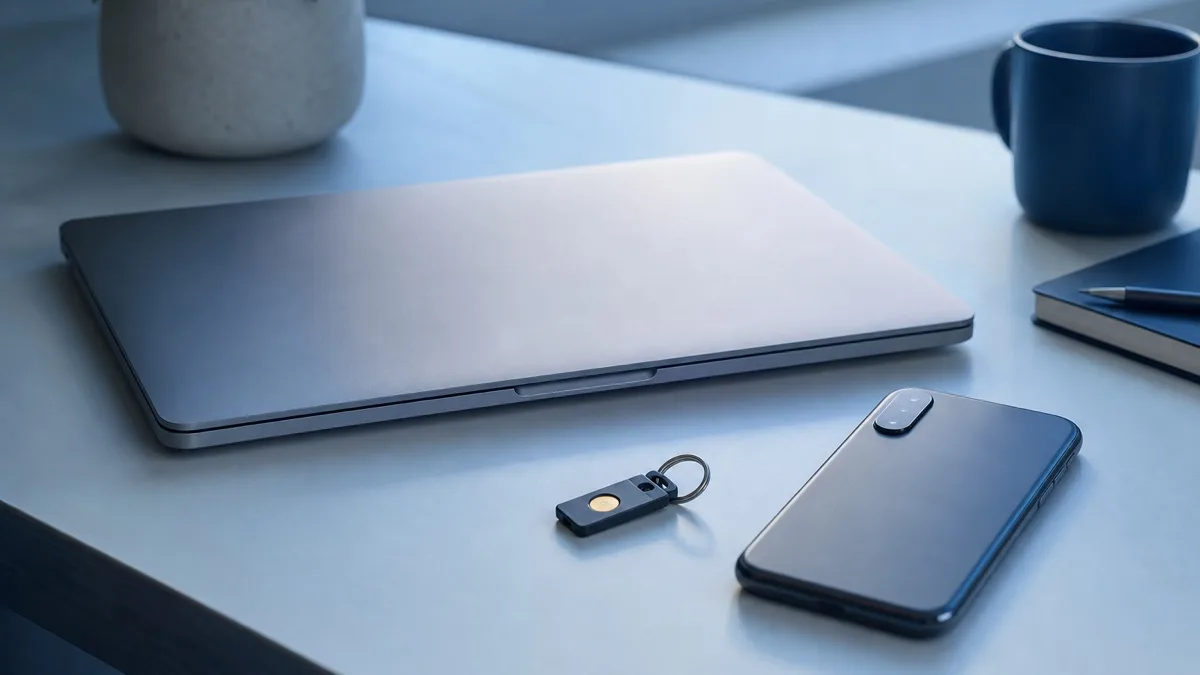
- Hardware security keys can hold passkeys too. They don’t sync, which is a security feature for some users and a backup problem for others.
A synced passkey survives the loss of a device: sign in to the provider on a new phone and the passkeys come back. A passkey stored only on one device or one hardware key does not. Moving passkeys between providers has historically been awkward. The FIDO Alliance has published specifications for exchanging them, and support is arriving in the major platforms and password managers, so check your provider’s documentation before you rely on it.
Signing in on someone else’s computer
Passkeys work on devices that don’t hold them. On a library computer or a friend’s laptop, choose the option to use a passkey from another device. The browser shows a QR code, you scan it with your phone, and you approve the sign-in there. The phone has to be physically close to the computer. That’s part of the design, and it stops a remote attacker from sending you a QR code and riding your approval.
Nothing is saved on the borrowed computer, though you should still sign out when you’re done.
A five-step plan for switching
- Pick your provider. If all your devices are from one ecosystem, the built-in option is the simplest. If you mix platforms, use a password manager that supports passkeys on all of them.
- Start with the accounts that matter most. Your email comes first, because it can reset everything else, then your main platform account (Apple, Google or Microsoft), then banking, payments and shopping. Look for passkey options in each account’s security settings.
- Keep a recovery route. Before you rely on a passkey, make sure each important account has a second way in: the old password protected by two-factor authentication, a backup passkey on a second device, or printed recovery codes stored somewhere safe.
- Test it on every device. Sign out and back in with the passkey on your phone, your computer and any tablet. Try the QR-code flow once so it’s familiar before you need it.
- Retire passwords slowly. Once a passkey has worked reliably for a few weeks, you can turn off password sign-in where a service allows it. Many don’t yet, and some still ask for a password in unusual situations, so keep the password in your manager rather than deleting it.
The bottom line
For most people, accepting the passkey prompt on an important account is an easy security upgrade. It’s quicker than typing a password and much harder to phish. The care goes into recovery, not into the passkey itself. Sync your passkeys through a provider you trust, keep a second way back into every account that matters, and don’t delete the old password until you’re sure you won’t need it.